

t6 pro smart thermostat manual
Need help setting up your T6 Pro? Find the official manual & troubleshooting tips here! Get the most out of your smart home with easy-to-follow instructions. **T6 Pro** made simple.
Honeywell T6 Pro Smart Thermostat Manual: A Comprehensive Guide
This manual provides detailed instructions for installing, configuring, and troubleshooting the Honeywell T6 Pro Wi-Fi Programmable Thermostat, compatible with most heating and cooling systems.
The Honeywell T6 Pro Smart Thermostat offers professional-grade control and convenience for your home’s climate. This Wi-Fi enabled thermostat is designed for compatibility with a wide range of heating, cooling, and heat pump systems, requiring a standard 24 VAC power source – crucially, a C-wire is needed.

It’s controlled via the thermostat itself, or remotely through the Honeywell Home app on Android or iOS devices. Models TH6320WF2003 and TH6220WF2006 provide flexible scheduling and energy-saving features.
Compatibility and System Requirements
The T6 Pro thermostat is broadly compatible, working with most 24 VAC heating and cooling systems, including heat pumps. However, it’s not suitable for electric baseboard heating (120-240V) or millivolt systems. A crucial requirement is a consistent 24 VAC power supply, and the presence of a common (C-wire) is essential for reliable operation.
Smartphone or tablet access, either Android or iOS, is needed to fully utilize the smart features.
Supported Heating and Cooling Systems
The Honeywell T6 Pro seamlessly integrates with a wide array of conventional heating and cooling setups. This includes forced air, warm air, hot water, and steam systems. Furthermore, it expertly manages heat pump configurations, supporting both single and multi-stage operation. Specifically, the thermostat accommodates systems with up to three heat stages and two cool stages, offering versatile climate control.
Voltage Requirements (24 VAC & C-Wire)
The Honeywell T6 Pro thermostat requires a stable 24 VAC power supply for optimal performance. A crucial component for reliable operation is the “C-wire,” or common wire, which provides continuous power. Without a C-wire, the thermostat may experience functionality issues. Ensure your existing system provides 24 VAC and includes a C-wire connection for seamless installation and consistent performance.
Incompatible Systems (Electric Baseboard & Millivolt)
The Honeywell T6 Pro thermostat is not designed for use with electric baseboard heating systems, which typically operate at 120-240V. Similarly, it’s incompatible with millivolt systems. Attempting to connect the T6 Pro to these systems may cause damage to the thermostat or the heating/cooling system. Verify your system type before installation to ensure compatibility and avoid potential issues.
Physical Dimensions and Specifications
The Honeywell T6 Pro Smart Thermostat comes in two models, each with similar dimensions: TH6320WF2003 and TH6220WF2006. Both measure 4-5/64 x 4-5/64 x 1-1/16 inches (104 x 104 x 27 mm). Electrical ratings include terminal voltage of 50Hz/60Hz, with varying running current for heating. These specifications are crucial for ensuring proper fit and functionality within your existing HVAC setup.
T6 Pro TH6320WF2003 Dimensions
The Honeywell T6 Pro Smart Thermostat, model TH6320WF2003, features precise dimensions for seamless integration into your home. It measures 4-5/64 inches in width and height, and 1-1/16 inches in depth. These dimensions, equivalent to 104 x 104 x 27 mm, ensure compatibility with standard wall plates and mounting locations. Accurate measurements are vital for a clean and professional installation.
T6 Pro TH6220WF2006 Dimensions
The Honeywell T6 Pro Smart Thermostat, specifically model TH6220WF2006, maintains a compact form factor for versatile placement. Its dimensions are precisely 4-5/64 inches wide and 4-5/64 inches high, with a depth of 1-1/16 inches. Expressed in millimeters, this translates to 104 x 104 x 27 mm. These standardized dimensions facilitate easy installation and replacement, ensuring a snug fit.

Electrical Ratings and Terminal Voltages
The Honeywell T6 Pro thermostat operates on a standard 24 VAC (50Hz/60Hz) power supply, essential for compatibility with most HVAC systems. Running current requirements vary depending on the heating or cooling load. Terminal voltages are carefully regulated to ensure safe and efficient operation. Proper voltage is crucial; the thermostat is not designed for high-voltage (120-240V) systems like electric baseboard heating.
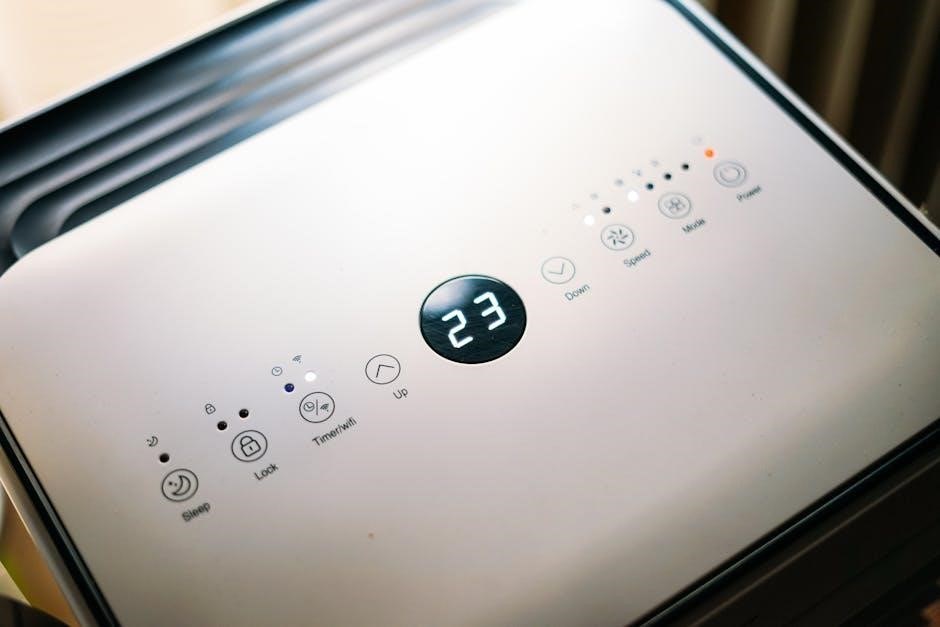
Installation Guide: Preparing for Setup
Before installing your Honeywell T6 Pro, ensure compatibility with your existing HVAC system – it requires 24 VAC power and a C-wire. Verify your system isn’t electric baseboard or millivolt; Download the Honeywell Home app to your Android or iOS device. Gather necessary tools and carefully review all safety precautions. Turn off power to your HVAC system at the breaker before proceeding with any wiring.
Wiring the T6 Pro Thermostat
Carefully disconnect wires from your old thermostat, labeling each one for correct reconnection. Refer to the wiring diagram specific to your HVAC system – heat pump or conventional. Connect the labeled wires to the corresponding terminals on the T6 Pro backplate. Ensure wires are securely fastened. A ‘C-wire’ is essential for consistent power. Double-check all connections before restoring power at the breaker, avoiding potential damage.
Initial Setup and Configuration
Upon powering on, the T6 Pro will guide you through initial setup. This includes selecting your system type (heat pump or conventional), configuring date and time, and connecting to your home’s Wi-Fi network. Download the Honeywell Home app (iOS or Android) for remote control. Follow the in-app instructions to register your thermostat and complete the configuration process, ensuring seamless integration with your smart home ecosystem.
Connecting to Wi-Fi
To connect your T6 Pro to Wi-Fi, navigate to the network settings on the thermostat’s display. Select your home network from the available list and enter your password using the touchscreen. Ensure a stable 2.4 GHz Wi-Fi connection for optimal performance. The Honeywell Home app also facilitates Wi-Fi setup, providing step-by-step guidance and troubleshooting assistance if connection issues arise during the process.
Downloading and Using the Honeywell Home App
Download the Honeywell Home app from the App Store (iOS) or Google Play Store (Android). Create an account or log in if you already have one. The app allows remote control of your T6 Pro, scheduling adjustments, and monitoring energy usage. Follow the in-app instructions to add your thermostat, ensuring it’s connected to the same Wi-Fi network.
Programming and Scheduling
The Honeywell Home app simplifies creating personalized heating and cooling schedules. Set different temperatures for various times of the day to optimize comfort and energy savings. Utilize the Home/Away modes to automatically adjust settings based on occupancy. The Vacation mode allows pre-setting temperatures for extended absences, further reducing energy consumption while ensuring system protection.
Setting Up Heating and Cooling Schedules
Through the Honeywell Home app, easily program distinct heating and cooling schedules tailored to your lifestyle. Define specific temperatures for wake, leave, return, and sleep periods; Create unique schedules for weekdays and weekends, maximizing comfort and efficiency. The intuitive interface allows for quick adjustments and overrides as needed, ensuring optimal climate control.
Home/Away and Vacation Modes
Utilize the Honeywell Home app to effortlessly switch between Home, Away, and Vacation modes. ‘Away’ mode automatically lowers energy usage while you’re gone, and ‘Vacation’ mode maintains a constant, energy-saving temperature for extended periods. These features, accessible via the thermostat or mobile app, provide convenient control and significant energy savings, adapting to your daily routines and travel plans.
Advanced Features and Settings
The Honeywell T6 Pro offers customizable advanced settings for optimized performance. Access the advanced menu by pressing and holding the ‘Menu’ button for five seconds from the home screen. Here, you’ll find ‘Installer Setup Options’ allowing professional adjustments. These features enable fine-tuning of system parameters, ensuring compatibility and maximizing efficiency based on specific heating and cooling system requirements.
Accessing the Advanced Menu
To unlock the T6 Pro’s advanced configuration options, navigate from the main display. Simply press and hold the ‘Menu’ button on the thermostat’s interface for a full five seconds. This action will grant you entry into the advanced settings, where you can customize installer options and fine-tune system parameters for optimal performance and tailored control of your home’s climate.
Installer Setup Options

Within the advanced menu, installers can access specialized settings for precise system configuration. These options allow for customization of parameters tailored to specific heating and cooling setups, ensuring optimal performance and efficiency. Adjustments include system type, fan control, and temperature range limits, providing granular control for professional installations and addressing unique system requirements effectively.

Troubleshooting Common Issues
This section addresses frequent problems encountered with the T6 Pro thermostat; If the screen is blank, verify the circuit breaker or fuse is functioning correctly. For connectivity issues, ensure Wi-Fi is stable and the thermostat is within range. Refer to the Honeywell Home app for further diagnostics and solutions, or contact support for assistance with complex problems.
Blank Thermostat Screen – Troubleshooting Steps
A blank screen typically indicates a power issue. First, check the circuit breaker controlling the thermostat’s power supply to ensure it hasn’t tripped. Next, verify the fuse is intact. Confirm proper wiring, especially the ‘C-wire’ connection, which is essential for consistent power. If problems persist, consult a qualified HVAC technician for further diagnosis and repair.
Connectivity Problems and Solutions
If your T6 Pro loses Wi-Fi connection, first, ensure your home network is functioning correctly. Reboot your router and modem. Verify the thermostat is within range of your Wi-Fi signal. Within the Honeywell Home app, attempt to reconnect the thermostat to your network. If issues continue, factory reset the thermostat and re-establish the connection, ensuring correct password entry.
Understanding Heat Pump Systems
The Honeywell T6 Pro supports configurations for heat pump systems with up to three heat stages and two cool stages. Proper configuration is crucial for efficient operation. Ensure the wiring matches your specific heat pump setup. The thermostat intelligently manages reversing valve control for heating and cooling transitions. Carefully review the system type settings within the advanced menu to optimize performance.
Configuration for Up to 3 Heat/2 Cool Systems
For heat pump systems utilizing up to three heat stages and two cool stages, the T6 Pro offers advanced configuration options. Access the installer setup via the advanced menu, holding the ‘Menu’ button for five seconds. Carefully select the appropriate system type and stage configuration to match your specific HVAC equipment. Incorrect settings can lead to inefficient operation or improper temperature control.
Understanding Conventional Systems
The Honeywell T6 Pro supports conventional heating and cooling systems with configurations of up to two heat stages and two cool stages. Proper setup ensures optimal performance and comfort. Within the advanced menu, accessible by pressing and holding ‘Menu’ for five seconds, select the conventional system type. Verify the correct heat and cool stage settings align with your HVAC system’s capabilities for efficient operation.
Configuration for Up to 2 Heat/2 Cool Systems
For conventional systems, the T6 Pro allows configuration supporting up to two heat stages and two cool stages. Access the advanced menu – hold ‘Menu’ for five seconds – and navigate to system setup. Carefully select the appropriate configuration matching your HVAC equipment. Incorrect settings can lead to inefficient operation or improper temperature control. Ensure accurate wiring and stage assignments for optimal performance.
Manual Control Options
The Honeywell T6 Pro offers convenient manual control directly on the thermostat and via the Honeywell Home app. Easily adjust the temperature set-point up or down as needed, overriding scheduled programs. Modify heating or cooling schedules directly through the thermostat interface. Utilize home/away and vacation modes for temporary adjustments. Remote control and monitoring are available through the mobile app, providing flexibility and convenience.
Adjusting Temperature Set-Point Manually
To manually adjust the temperature, use the up and down arrow buttons on the T6 Pro thermostat’s faceplate. This overrides the programmed schedule until the next scheduled change. The current set-point is clearly displayed on the screen. Through the Honeywell Home app, you can also remotely adjust the set-point, offering convenient control from anywhere. This provides immediate comfort adjustments as needed.
Mobile App Features Overview

The Honeywell Home app unlocks remote control and monitoring of your T6 Pro thermostat. Users can adjust temperatures, view energy usage reports, and manage schedules from their smartphones or tablets. Geofencing capabilities automatically adjust settings based on location. Receive alerts for extreme temperatures or system issues, ensuring optimal comfort and efficiency. The app simplifies thermostat management, providing convenience and control.
Remote Control and Monitoring
Through the Honeywell Home app, enjoy full remote access to your T6 Pro thermostat. Adjust temperature settings from anywhere with an internet connection, ensuring comfort upon arrival. Monitor current home temperature and humidity levels in real-time. View historical energy usage data to optimize settings and reduce costs. Receive instant alerts for system malfunctions or unusual temperature fluctuations, providing peace of mind.

Safety Precautions and Warnings
Installation should be performed by a qualified professional to avoid electrical hazards. Always disconnect power at the circuit breaker before wiring the thermostat. Do not expose the device to excessive moisture or extreme temperatures. This thermostat is designed for indoor use only. Improper installation can damage the HVAC system or the thermostat itself. Follow all local electrical codes and regulations during installation and operation.
Warranty Information and Support
Honeywell Home offers a warranty against defects in materials and workmanship for the T6 Pro Smart Thermostat. For specific warranty details and duration, please refer to the included warranty documentation or visit the Honeywell Home website. For technical support or assistance, contact Honeywell Home Support at (844) 479-1555. Additional resources, FAQs, and troubleshooting guides are available online.
Contacting Honeywell Home Support (844-479-1555)
For immediate assistance with your Honeywell T6 Pro Smart Thermostat, reach out to Honeywell Home Support at (844) 479-1555. Their dedicated team can help with installation questions, troubleshooting connectivity issues, or navigating advanced features. Be prepared to provide your thermostat model number (TH6320WF2003 or TH6220WF2006) for efficient support. Online resources and FAQs are also available.